Hey there, fellow school admins, tech coordinators, and maybe even a frazzled teacher who’s tried shoving a monitor on a desk and ended up with a wobbly mess that almost took out a pencil sharpener. I’ve been in the school desk game for years now, and let’s be real—placing a monitor on a student desk isn’t just “set it down and hope.” I’ve seen so many folks get this wrong: monitors tilted so bad half the class can’t see, cords tripping kids, or desks scuffed up from heavy hardware that’s not secured right. Today I’m breaking down exactly how to do this the smart way, no fancy tools required, and why it matters for your kids’ focus (and your desk budget). School Desk
First off, let’s talk about who this is for. If you’re a small school with 100 Chromebook carts that now need a few desktops for coding class, or a district upgrading to hybrid learning for the year, this is for you. I sell school desks, so trust me when I say I’ve watched my own desks get damaged because someone skipped these steps. Let’s start with the basics you probably already have, but maybe haven’t thought through.
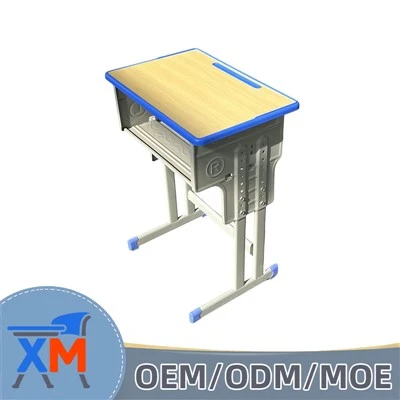
Step 1: Pick the right desk first. Wait, I know I’m biased, but hear me out. Not all desks are made for monitors. That rickety 30-year-old metal desk that’s held together with tape? Yeah, that’s not gonna work if you’re putting a 15-pound monitor on it. When I work with schools, I always tell them: if you’re gonna add monitors, get desks with a solid, flat top—no weird little grooves that catch cords or uneven edges that make monitors wobble. Also, check the desk’s weight limit. Most basic student desks are made for notebooks, backpacks, maybe a textbook stack. A monitor plus a keyboard and mouse? That’s 15-20 pounds easy. Look for desks rated for at least 25 pounds on the surface where the monitor sits. I carry this stat in my head because I’ve had a school call me last year saying a monitor fell through their old desk—cost them a new monitor and a trip to the nurse when a kid’s knee got banged. Don’t be that school.
Step 2: Choose where on the desk the monitor goes, and I mean exactly where. Not random. Most desks have a front edge, a back edge, and a spot for a keyboard tray (if you have one). Here’s the rule I swear by: place the monitor 6-10 inches back from the front edge of the desk, and centered on the desk’s surface. Why? Because if you put it too close to the front, kids will rest their arms on the edge, push the monitor, and it’ll topple. Too far back, and the keyboard tray (if you have one) won’t fit, so they’ll type on the same surface as the monitor, cramping their space for notes. Centered is key too—no one’s neck is built to crane left or right for 45 minutes of class. I once watched a 7th grader squint at a monitor that was shoved to the right edge for a whole math period and end up with a headache. Not cool.
Step 3: Monitor height and angle, this is the big one for actual learning, not just making it fit. I don’t care if you have a $100 monitor or a district-issued behemoth—height is non-negotiable. The top of the monitor’s screen should be at or just below eye level when a student is sitting up straight in their chair. If you have little elementary kids, lower it. If it’s high schoolers, it can be a tiny bit higher, but never so high they’re craning their neck up like they’re looking at a bird feeder. And angle it slightly back—like 10-15 degrees. No tilting it all the way back like a movie screen, that makes glare from overhead lights super bad. No tilting it forward flat, that strains their eyes. I tell teachers to test this themselves before class starts—sit in a student’s seat, lean back like a kid would (don’t slouch, but don’t be stiff), and adjust the monitor so they don’t have to turn their head or squint.
Wait, what if you don’t have an adjustable monitor stand? A lot of schools get monitors that come with a basic fixed stand, right? No problem. I’ve worked with a tech team last year that used a stack of 3 sticky note pads under the back corners of the monitor to get the angle right. It’s ghetto, but it works, and it doesn’t damage the desk. Just don’t use hard objects like pennies or erasers—they’ll scratch the desk’s surface, and if you sell or repurpose the desks later, scratches hurt the value.
Step 4: Cords. Oh my god, the cords. This is the part that trips more kids than anything else, I swear. When you place the monitor, route the power cord and the HDMI/USB cord along the back of the desk, not hanging off the front edge. Most school desks have a little gap between the desk top and the back panel, or a notch cut into the back edge specifically for cords. Use zip ties (the reusable kind, not the permanent ones—you’ll need to adjust cords later) to tie the cords together so they’re not loose. If there’s no notch, you can use a cord organizer pad that sticks to the back of the desk surface. I sell these, actually, but even a $5 mat from Amazon works. Just make sure cords don’t stretch tight—leave a little slack so if someone yanks the keyboard, it doesn’t pull the monitor off the desk.
Step 5: Securing the monitor so it doesn’t move. I know what you’re thinking—“It’s just a monitor, not a hostage.” But kids bang desks, move chairs around, sometimes forget they’re sitting too close and lean on the desk. The last thing you want is a monitor sliding off onto a kid’s backpack. If your monitor has VESA mounting holes (most do for newer monitors), you can get a simple desk clamp that screws onto the desk edge and attaches to the monitor back. No drilling, which is perfect because you don’t want to mess up a new school desk. If you don’t want to buy a clamp, just place a non-slip mat under the monitor base. I’m talking the kind you put under a rug, not a random rubber band. That tiny bit of grip is enough to stop a monitor from sliding if a kid bumps the desk. I tested this last month with a teacher who said her monitor moved every time her class’s dog (yes, a service dog that comes to class) brushed the desk. She put a non-slip mat under it, problem solved.
Now, let’s talk about common mistakes I see every single week, so you don’t make them. First, overloading the desk top. Some schools try to put the monitor, a printer, a pencil bin, and a stack of textbooks on the same desk. That’s a recipe for disaster. Keep the desk surface clear except the monitor, keyboard, and mouse. Kids don’t need textbooks on the desk when they’re on a computer anyway—they can keep them in their backpack or in a cubby. Second, glare. So many schools put monitors right under overhead lights, so the screen is all washed out. If that’s your only spot, get a cheap screen hood for the monitor, or adjust the room lights to be a little dimmer during computer time. Third, ignoring the chair. If you place the monitor perfect, but the chair is too short, the kid’s eyes are lower than the top of the monitor. That’s why I always tell schools to check the chair height at the same time as the monitor—adjust the chair so the kid’s feet are flat on the floor, knees at a 90-degree angle, and then adjust the monitor height from there.
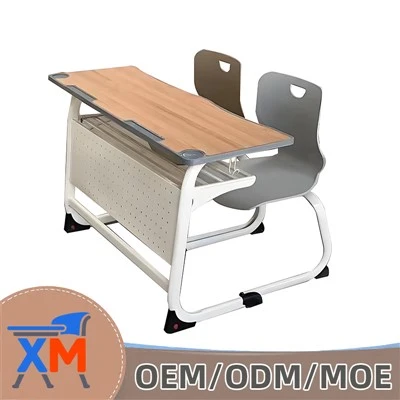
Wait, what about group work desks? A lot of elementary schools have those big 4-person desks instead of individual ones. The same rules apply, but you have to center the monitor between the two front seats so both kids on the left and right can see it. No shoving it to the left so only one side can see. I had a 3rd grade teacher tell me last year that after moving their monitor to the center, half her class stopped complaining about headaches during computer time. Game changer.
Let’s also talk about long-term stuff, because I care about your desks lasting. Scratches on desk tops? They’re not just cosmetic—they can trap dirt, make it hard to clean, and reduce the desk’s lifespan. So when placing the monitor, don’t drag it across the desk. Lift it. I know it’s heavier, but a quick lift avoids those deep scratches that have to be sanded out later. Also, if you have adjustable desks (super popular now for kids who need different heights), make sure when you adjust the desk, you move the monitor first if it’s clamped to the desk surface. Don’t try to adjust the desk while the monitor is on it—you’ll either bend the clamp or tip the monitor.
Here’s a quick check list you can print out for your tech team or teachers: 1. Desk has weight limit ≥25 lbs and solid flat surface. 2. Monitor is 6-10 inches back, centered. 3. Top of screen is at eye level when student is sitting straight. 4. Cords routed along back, secured, no slack hanging. 5. Monitor is non-slip or clamped to desk. 6. No extra stuff crowding the desk surface. That’s it. Done.
Now, if you’re here because you’re outfitting a whole classroom or a whole district, I get it—this is a lot, and you don’t want to mess up a $5k order of desks. I work with schools all the time to customize desks for monitor placement, even adding built-in cord notches or monitor mounts so you don’t have to do any extra work. The whole point is making this easy for you, because when teachers don’t have to fight wobbly monitors or tripping cords, they can focus on teaching, and kids can focus on learning.
If you’re ready to upgrade your desks with monitor-friendly setups, or just have questions about what works best for your school’s size or grade level, hit me up to chat. No sales pitch, just real talk about what’s worked for other schools like yours.
Multi-person Classroom Desk References: 1. National Education Association. (2022). Classroom Ergonomics for Student Technology Integration. 2. American Academy of Pediatrics. (2021). Health and Safety Guidelines for K-12 Computer Workstations. 3. School Facilities Maintenance Journal. (2023). Best Practices for Protecting Classroom Furniture During Tech Upgrades.
Shanghai Xinmu Industrial Co., Ltd.
We are one of the most professional school desk manufacturers and suppliers in China. With abundant experience, we warmly welcome you to wholesale customized school desk at competitive price from our factory. If you have any enquiry about pricelist, please feel free to email us.
Address: 3rd Floor, NO.5# Building, No. 288 Rongxing Road, Songjiang District, Shanghai
E-mail: sales@xinmugroup.com
WebSite: https://www.xinmufurniture.com/
